
Search
Federated Directory has been built to make it easier to find the right contact information. If your company is federated with other companies, you can search for contact information across companies you work with. Otherwise, you can search within your own company.
Important to note, that search will only match contacts within groups you are member of. This means that you should be a member of at least one group with other users if you want to see any results. Information about groups can be found in this guide.
Searching for contacts is as easy as typing the name of the person you are looking for. With every letter you type, we instantly search for and filter the list of your Federated Directory contacts. Select the contact you are looking for to open up the contact details page.
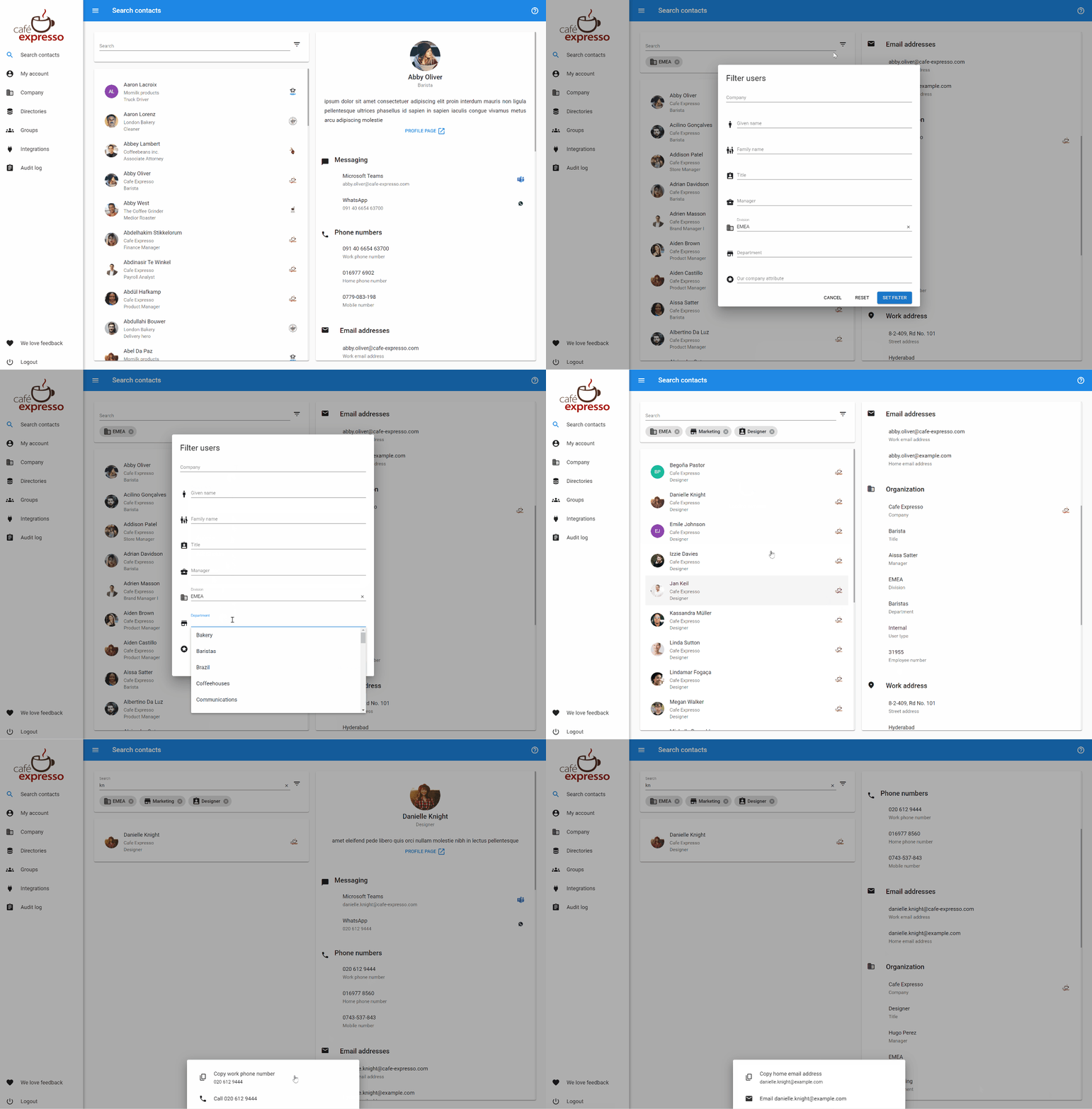
Search contacts within another company
To search for a contact information of one desired company only, you should use the filter button  . Click this button to open the filter dialog.
Within this dialog, you can select contact boundaries in which we will perform your contact search.
Company Select the company the corporate address book of which you want to search in. If you select another company in this drop-down list, all other search filters will be reset. All the filters below will be within the scope of the company selected.
Given name Select a given name from the drop down. You can also type to filter the names. The selected given name will be an exact search. It will show all the contacts with that exact given name.
Family name Select a family name from the drop down. You can also type to filter the names. The selected family name will be an exact search. It will show all the contacts with that exact family name.
Title Search for contacts with a specific title. This drop-down list shows all the titles we have found within the company selected above.
Manager Search for contacts with the same manager. Search through all the contacts within this company and select the manager. You will find all the contacts that refer to this user as their manager.
Division Search for contacts in a specific division within the company selected above. The selected division will be an exact search.
Department Search for contacts in a specific department. The selected department will be an exact search.
Custom attributes You administrator can enable some company specific attributes on users. You will be able to filter on those attributes as well.
Organizational Chart (Org Chart)
Federated Directory features a dynamic, interactive Organizational Chart (Org Chart) that allows you to visually explore reporting structures and management chains across your organization and federated partners.
You can access the Org Chart by selecting any contact and clicking on the Org chart tab on their contact details card.
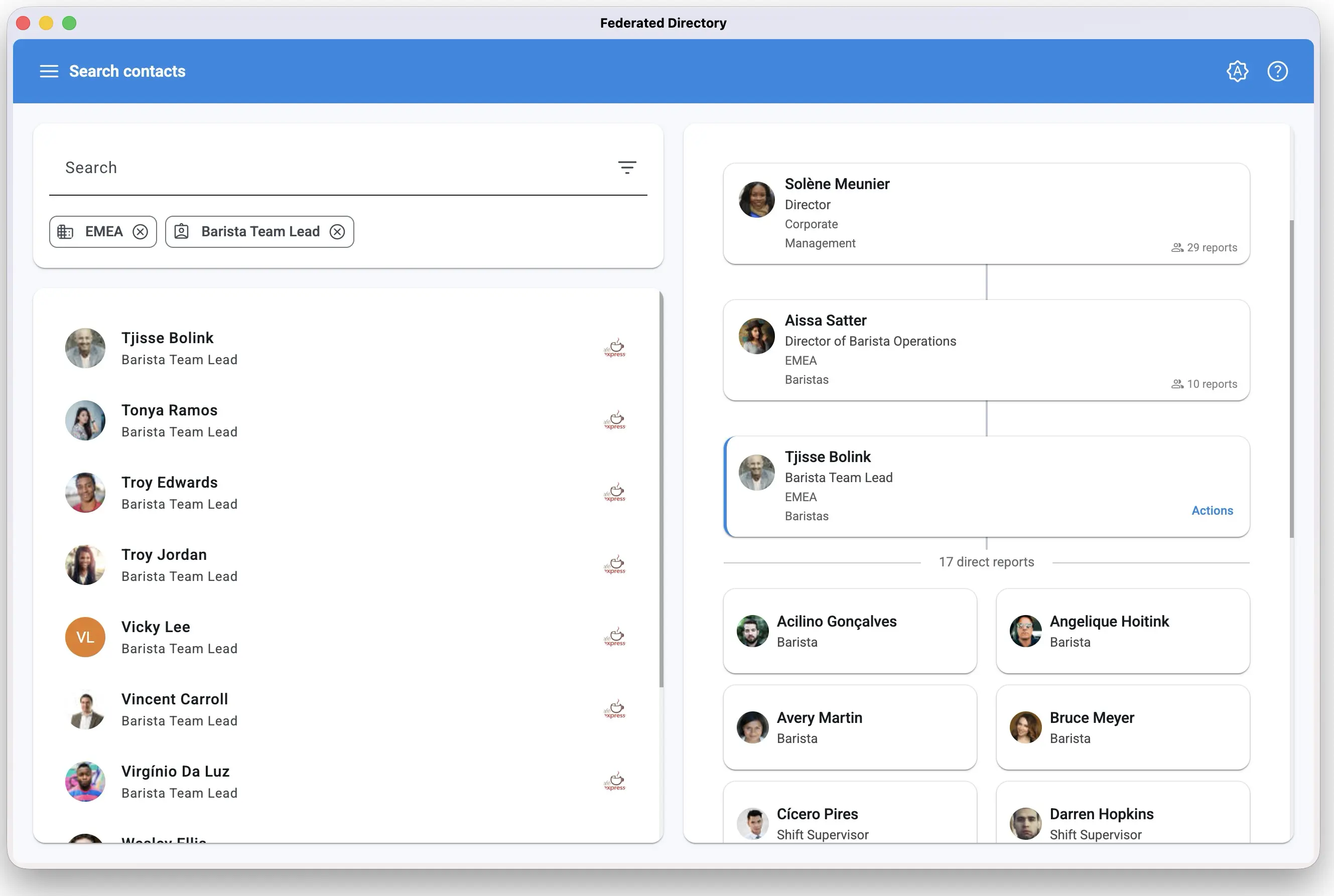
Dynamic 3-Level Explorer View
The Org Chart utilizes a centered explorer design to display reporting relationships at a glance:
- Management Chain (Managers Above): Displayed above the focused contact, this shows the direct chain of managers leading up to the organization's root or top-level leader.
- Focused Contact (Center): Highlighted in the center with a distinct blue border, showing detailed information such as department, division, and location. It features the Actions button for advanced shortcuts.
- Direct Reports (Below): Presented in a grid showing direct reports with their names, avatars, and titles. For large teams, direct reports are loaded incrementally (20 at a time) with a Load more button to keep the view clean and easy to read.
Seamless Navigation
- Browse Reporting Trees: Click any card in the managers chain above or any direct report card below to instantly shift the focus to that person. The org chart smoothly transitions to show their position in the hierarchy.
- Deep Linking & Browser History: As you browse, your web browser's address bar updates automatically. You can copy the link at any point to share a deep link directly to that specific person's org chart node, and use your browser's Back and Forward buttons to navigate your browsing history.
Quick Actions & Directory Filters
Selecting the Actions button on the focused contact card opens a menu with powerful shortcuts that connect the Org Chart back to the main directory search:
- Open Profile: Open the full contact details page for the selected person.
- Filter on Manager: Instantly filter the directory to show all contacts who report to this person's manager.
- Filter on this manager: Filter the directory to list all direct reports of this person.
- Filter on Job Title: Filter the directory to find everyone with this exact job title.
- Filter on Division: Filter the directory to show all contacts within this division.
- Filter on Department: Filter the directory to show all contacts within this department.